[How to] Convert AVCHD ISO to MKV
These steps will help you convert an AVCHD ISO to MKV so it is playable on your PC.
After some searching after my previous post.
I have found the answer on the AfterDawn forums.
The only difference being that IsoMagic failed to open up the ISO at all. Instead I used IsoBuster created by Smart Projects.
The software you will need is:
- IsoBuster - (You will need to purchase, as free trial does not allow ability to extract.)
- tsMuxeR - Freeware.
- mkvtoolnix - Freeware (Windows download at the bottom.)
Here are the steps:
- Open the ISO in IsoBuster. Navigate to the BDMV folder then the STREAM folder.
- In this folder you should find a the video called 00000.mts or 00001.mts or something similar.
- Extract this to somewhere on your harddrive.
- Once the file has finally finished extracting to the hard drive, open up tsMuxeR.
- Add the file you just extracted, you should have a window like the following:
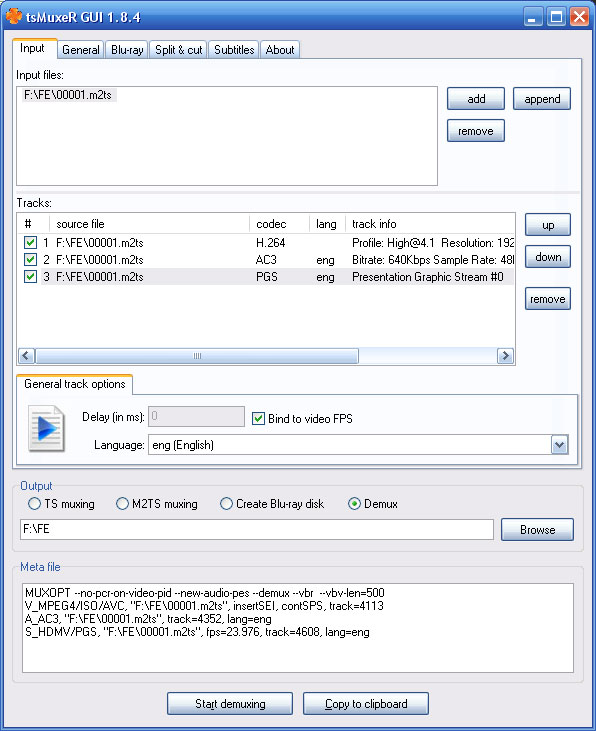
- Press Start demuxing. This will take a few minutes depending on the size of the file and your computer.
- The outcome of this is that we will have seperate audio and video files which we will now merge together using a great tool called mkvmerge.
- In mkvmerge, we want to select the .ac3 file and the .264 file, so go to Add at the top right and select both these files.
- mkvmerge will correctly detect what sort of file they are, but you will need to manually set the fps of the video as mkvmerge won't be able to detect it. The output from tsMuxeR will tell you the fps, then all you need to do now is select where you want to save the finished MKV and press Start Muxing.
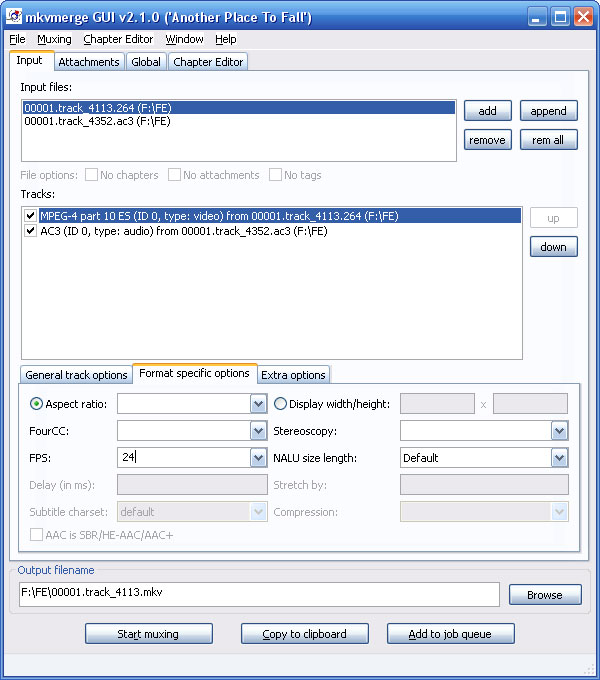
- Like the demux this will take a while depending on the files and the hardware in your PC, once complete you can play the MKV in your media player.
Job done. Let me know in the comments if this worked for you.
Edit: See comments if you are getting an out of sync problem.


Comments
Bas
Mon, 2008-08-04 19:41
Permalink
Works great!
Works great!
Tracy
Mon, 2008-08-04 23:08
Permalink
I followed your directions
I followed your directions exactly (except for using daemon tools instead of IsoBuster) but the audio is out of sync in the resulting mkv file. I checked my source and the audio is fine.
admin
Tue, 2008-08-05 09:44
Permalink
@Tracy, I had this problem
@Tracy,
I had this problem with one of mine, most came out OK, but one was out of sync. In the end I just used tsMuxeR again and muxed it as .ts which plays perfectly fine in SMPlayer.
Lheurch
Tue, 2008-08-05 20:53
Permalink
Make sure you put the proper
Make sure you put the proper FPS. DO NOT round 23.976 up to 24. Pick the 24000/1001 option for this and it should work.
Tracy
Wed, 2008-08-06 02:37
Permalink
24000/1001 did the trick. I
24000/1001 did the trick. I had used 23.976 but I guess that wasn't close enough. Thanks for the help!
name
Mon, 2008-08-11 04:29
Permalink
Works great!! Thanks!
Works great!! Thanks!
Alex
Wed, 2008-08-13 21:13
Permalink
Hey thanks for this :) i have
Hey thanks for this :) i have no PS3 to play these iso's and powerdvd wasn't an option ;) VLC plays these video files, flawlessly, as stated above, make sure you put the exact FPS otherwise you will have sync issues ;) cheers!!
derrick
Wed, 2008-09-24 08:54
Permalink
So, I'm trying to use .m2ts
So, I'm trying to use .m2ts files from my hard disk video camera without success. After demuxing and merging the files to mkv, I get a still picture in VLC and audio for a few seconds, then VLC quits. Any suggestions?
admin
Wed, 2008-09-24 09:48
Permalink
You could try playing in
You could try playing in SMPlayer and see if the same thing happens, if so then there must be a problem with the mkv that was produced.
derrick
Wed, 2008-09-24 13:20
Permalink
Yeah, pretty much the same
Yeah, pretty much the same thing happened. Video is distorted with horizontal lines and the audio has an echoing effect. I'll have to play some more with the two programs to see if I can get a better result. Thanks for the quick response.
Abra
Sat, 2008-11-15 22:56
Permalink
Hi, Works excellent, except
Hi, Works excellent, except for the subs. It leaves me with sup subtitle files, and mvkmerge won't read them...
Stephen
Thu, 2008-11-27 23:04
Permalink
You only need steps 1-3
You only need steps 1-3 above.
Then you can open the m2ts file directly in media player classic (comes with combined community codec pack).
No splitting audio, etc so audio is in perfect sync.
thinkweird
Wed, 2008-12-03 17:50
Permalink
Can't find a Contact form,
Can't find a Contact form, so...
Did you modify the comment style? The default miniml theme does not differentiate comments with colors, how did you do that?
admin
Fri, 2008-12-05 00:50
Permalink
Just modify the comments.php
Just modify the comments.php file and the CSS.
Zman
Fri, 2008-12-05 19:04
Permalink
Yes you can play the m2ts
Yes you can play the m2ts file however you cannot seek or fast forward/reverse the m2ts file in any player that I have tried.
Alex
Mon, 2009-01-19 23:12
Permalink
As i said before this works
As i said before this works perfectly, this is the third time i've viewed the tutorial, takes about 5mins in total with a quad core and 4gb ram :D thansk again admin :D
Dirt
Fri, 2009-01-23 23:24
Permalink
Hi The problem for me
Hi
The problem for me being is that in my stream folder there
are about 102 .mts files like 00000.mts ,mine start from
00000.mts ,theres no 00001.mts ,to 00115.mts
The movie it self is spread amongst all these files
So what do i load now ? I tried just the 00000.mts
But that didnt work
Please advise
Cheers
Dirt
Fri, 2009-01-23 23:39
Permalink
PS I also dont have the
PS
I also dont have the option bind video to FPS option
as i see here in the tutorial
Cheers
admin
Sat, 2009-01-24 01:47
Permalink
@Dirt, Are you sure there
@Dirt,
Are you sure there isn't one big MTS file for the whole film?
If not you may need to do each one seperately then append each one to make it in to a single file.
Or there should be a better of doing this by now.
toiday
Mon, 2009-01-26 02:52
Permalink
I found an another way to
I found an another way to extract the m2ts file without having to purchase isoBuster or DaemonTool pro. I downloaded a live Linux CD. I uses Fedora but any version would work. I use the CD and bootup from the PC with the AVCHD iso file. Mounted the ntfs disk with the AVCHD iso file. Mount the iso file. Then step 1 to get to the m2ts file. Copy the file to the ntfs mount. Boot the pc back to Windows and you have gotten the m2ts.
toiday
Mon, 2009-01-26 03:29
Permalink
Everything works. However,
Everything works. However, after running tsMuxeR, I have a .sub (subtitle) file. I'm not able to add that file into my mkv file with mkvMerge. Is there a way to add subtitle into mkv file?
Rob Kemna (Neth...
Wed, 2009-02-04 02:08
Permalink
Whoow, it works
Whoow, it works flawlessly.
This is a very good manual for converting AVCHD to MKV format.
I use a Popcorn Hour to play all the great HD-movies on a 50 inch Plasma.
Before this I didn't know how to handle AVCHD ISO files, Thanks again!
durandal
Sat, 2009-03-28 18:21
Permalink
It's work fine great job
It's work fine great job !
But the size of the mkv is around 20 Gb
What is the way to reduce it (around 8-9 Gb) ?
Thanks
admin
Sat, 2009-03-28 18:43
Permalink
You will have to re-encode
You will have to re-encode the whole video which will take hours.
durandal
Sat, 2009-03-28 20:35
Permalink
OK but with what tool ?
OK but with what tool ?
admin
Sat, 2009-03-28 22:38
Permalink
Something like Staxrip or
Something like Staxrip or MeGUI should do the job. There are plenty of guides online.
ndotano
Mon, 2009-03-30 08:28
Permalink
How to convert 50 fps mts to
How to convert 50 fps mts to mkv, i've tried several times, result = slowmotion.
admin
Mon, 2009-03-30 13:41
Permalink
When using mkvmerge you will
When using mkvmerge you will need to set the FPS to 50, or you will need to reencode the original 50fps mts file to a 24fps mkv using Staxrip, MeGUI or a similar application.
Christopher
Tue, 2009-04-21 14:57
Permalink
very nice but what about the
very nice but what about the subs ? because i cant add the sup file to the merge program
thanks
Dave
Thu, 2009-05-07 13:35
Permalink
ISObuster does not extract
ISObuster does not extract the m2ts for me. It takes only half a second and the file is not in the directory I saved it in. Any pointers?
admin
Thu, 2009-05-07 17:30
Permalink
Are you using the right m2ts
Are you using the right m2ts file?
Dave
Fri, 2009-05-08 08:09
Permalink
I believe so, it's the file
I believe so, it's the file named 00000 if Im not mistaken, also the same thing happens if I try to extract the whole BDC file. I'm puzzled. My dilema is: I have bought a Sony 40W5500 and this can apparantly play AVCHD files streamed from my PC, so I decided to test it but I cant extract the files from the iso.
admin
Fri, 2009-05-08 12:59
Permalink
Does the ISO/Bluray disc have
Does the ISO/Bluray disc have copyright protection on it?
Dave
Mon, 2009-05-11 13:24
Permalink
Problem solved, I used
Problem solved, I used ISObuster, thanks anyway.....
mirko
Thu, 2009-05-21 21:04
Permalink
hello, when i get to step
hello,
when i get to step 5 and try to demux it gives a message "cannot create file
D:\.meta access denied. what the ... is this?
every step up to that point was no problem but now i got stuck.
anyone familiar with this?
thnx
admin
Fri, 2009-05-22 18:35
Permalink
Is D: writable?
Is D: writable?
Mirko
Fri, 2009-05-22 20:15
Permalink
what do you mean, should u
what do you mean, should u direct it to an dvdrom?
'cause in my case i mean D as in my hard drive.
admin
Fri, 2009-05-22 20:45
Permalink
No, it should be to a hard
No, it should be to a hard drive. Not sure what the problem is, I have never come across it or heard of it. I assume that the hard drive isn't full and you have full write permissions? You could try creating a subfolder and using that as your destination, or trying another drive.
kaylix
Fri, 2009-07-24 21:00
Permalink
I'm having the same issue as
I'm having the same issue as Dirt, from Jan 2009. I have m2ts files beginning with 00000 and going through 00131 for a total of 73 files. There are 3 files ~15gb each and most of the rest are 23mb with one 540mb file.
How do I get these all into a single .mkv?
Thanks!
nino
Sat, 2009-09-05 10:51
Permalink
awsome tut man wish i new
awsome tut man wish i new what i was doin wrong dude i got a bunch of vts files i dont seem to see any mts got any idea and dont seem to see any BDMV folder then the STREAM folder.
nino
Sat, 2009-09-05 10:56
Permalink
http://www.avsforum.com/avs-v
http://www.avsforum.com/avs-vb/showthread.php?p=13961911#post13961911 check this out
Wiz
Tue, 2009-12-01 03:43
Permalink
Great stuff! I have a PS3
Great stuff! I have a PS3 with Yellow Dog Linux on it. I guess you can write a cmd that will create an ISO from an Blu-ray disc and place it on the internal HDD. I want to get the ISO over to my PC where I can perform the conversions. I read up that you need an MKV to start with and then run it through Tsmuxer to create an m2ts file with the PS3 can read. Does any one know how to take an iso file and get it all the way to a PS3 format that it can read?
Steve
Sun, 2009-12-13 23:30
Permalink
There seems to be a new and
There seems to be a new and much easier way to do this. Simply mount the ISO with Daemon Tools and run MakeMKV against it. MakeMKV is free to downloaf from www.makemkv.com
Chriz
Mon, 2009-12-28 21:13
Permalink
It works! Thank you!
It works! Thank you!
Pieter
Mon, 2010-05-10 19:31
Permalink
and subs you can added to
and subs you can added to it.?
thats my question because ill can read over about this
topic thanks in advance,
admin
Mon, 2010-05-10 22:08
Permalink
Use MKVToolnix to add subs.
Use MKVToolnix to add subs.
wishyou0607
Sun, 2010-05-23 04:31
Permalink
i use brorsoft avchd video
i use brorsoft avchd video converter which is much easier and fast to use.
Rundee
Wed, 2010-11-03 10:27
Permalink
Thanks for this! It is 100%
Thanks for this! It is 100% working. just follow the steps provided.
dayle
Sat, 2010-11-13 08:22
Permalink
my video has dts as audio
my video has dts as audio source, my tv does not support dts, can i convert to mkv with ac3 container - which program should i use to do the same?
programma per p...
Wed, 2010-12-29 17:01
Permalink
[...] [...]
[...] [...]
Pages